
Please check before traveling
Recommended Service Introduction
Hakone Luggage Transport Service
Would you like to enjoy a hands-free trip starting from Hakone-Yumoto Station?

This is a service for those who want to enjoy Hakone hands-free and at ease.
Simply leave your luggage at the Hakone Carry Service counter inside Hakone-Yumoto Station, and we will deliver it to your accommodation!
On your return, just leave your luggage at the hotel, and you can pick it up at Hakone-Yumoto Station!
You can easily make a reservation in advance using your smartphone, and online payment by credit card is also available.
Check now
How to Use EMot Tickets
How to use tickets
01
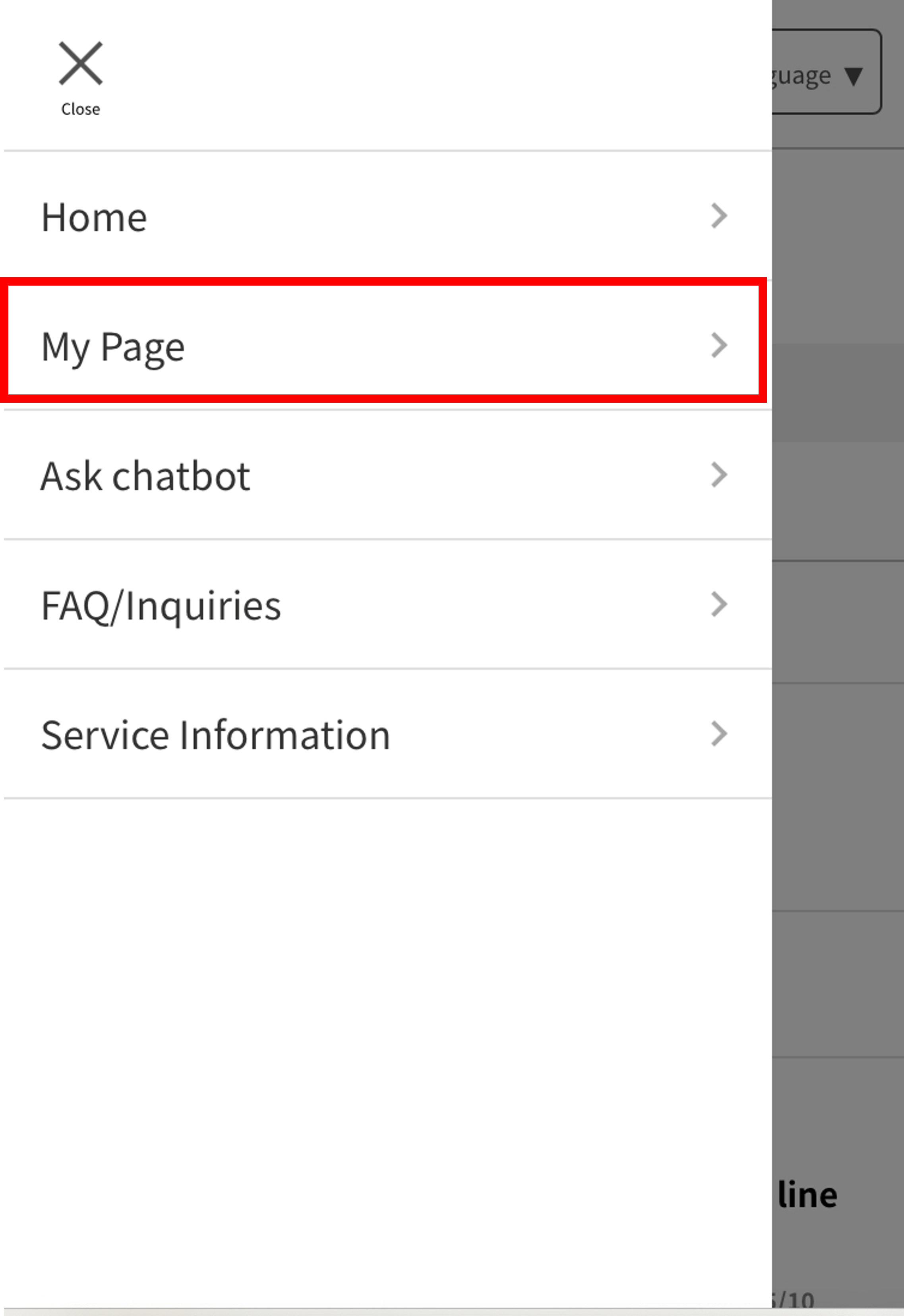
Access "EMot Online Tickets" and select "My Page" from the menu.
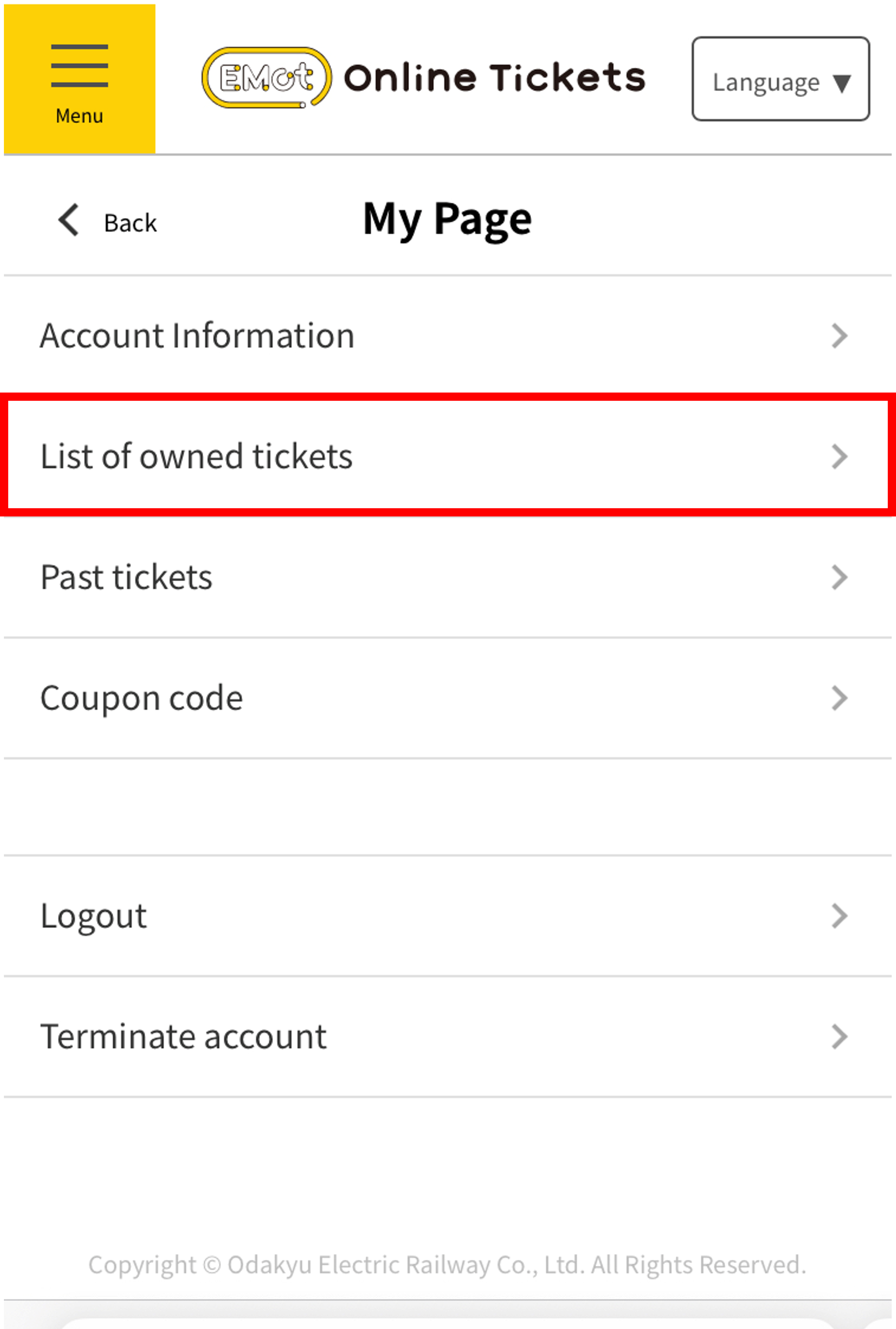
From "My Page," select "List of owned tickets" to view your tickets.
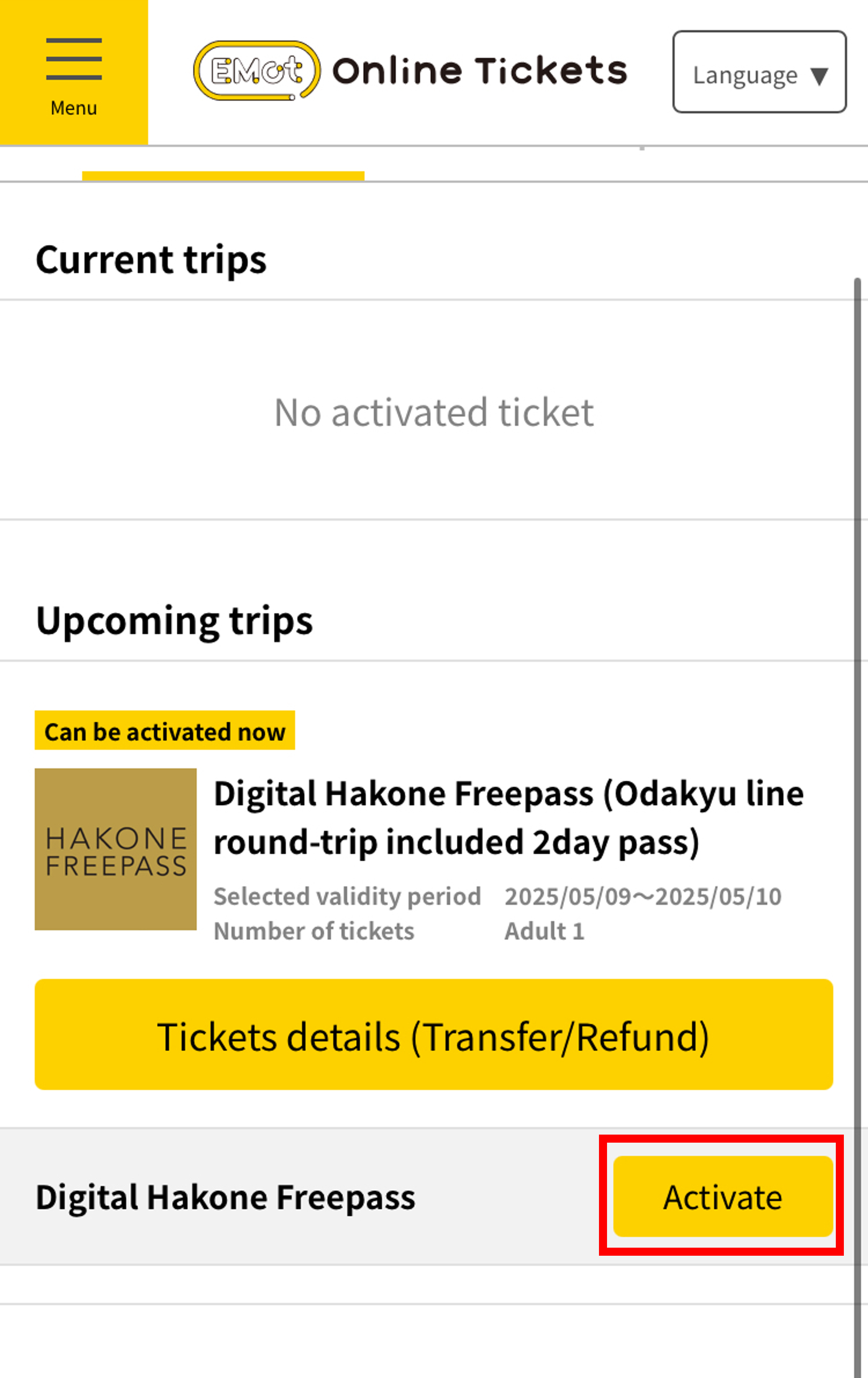
Select "Activate" on the ticket you wish to use.
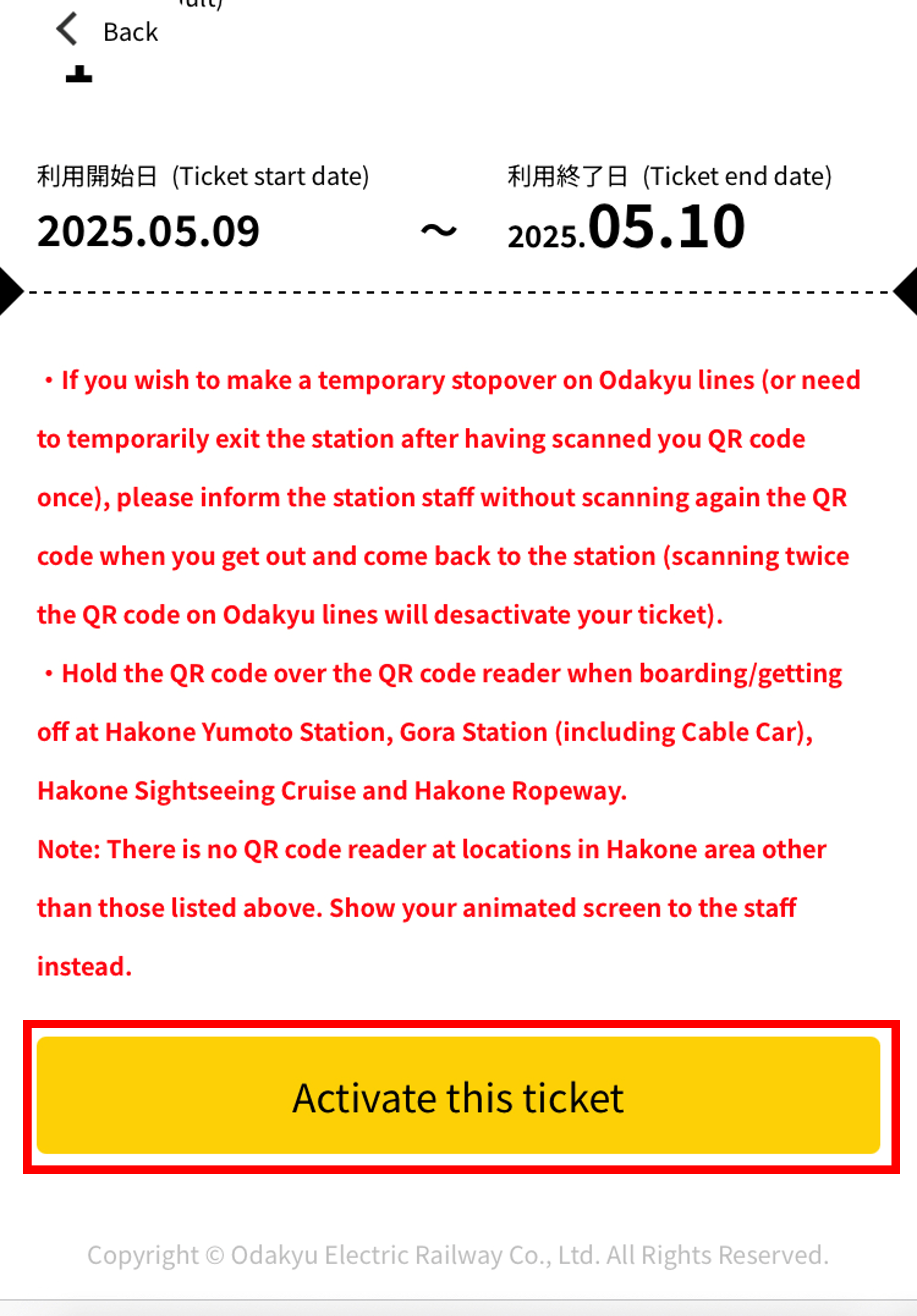
Tap "Activate this ticket".
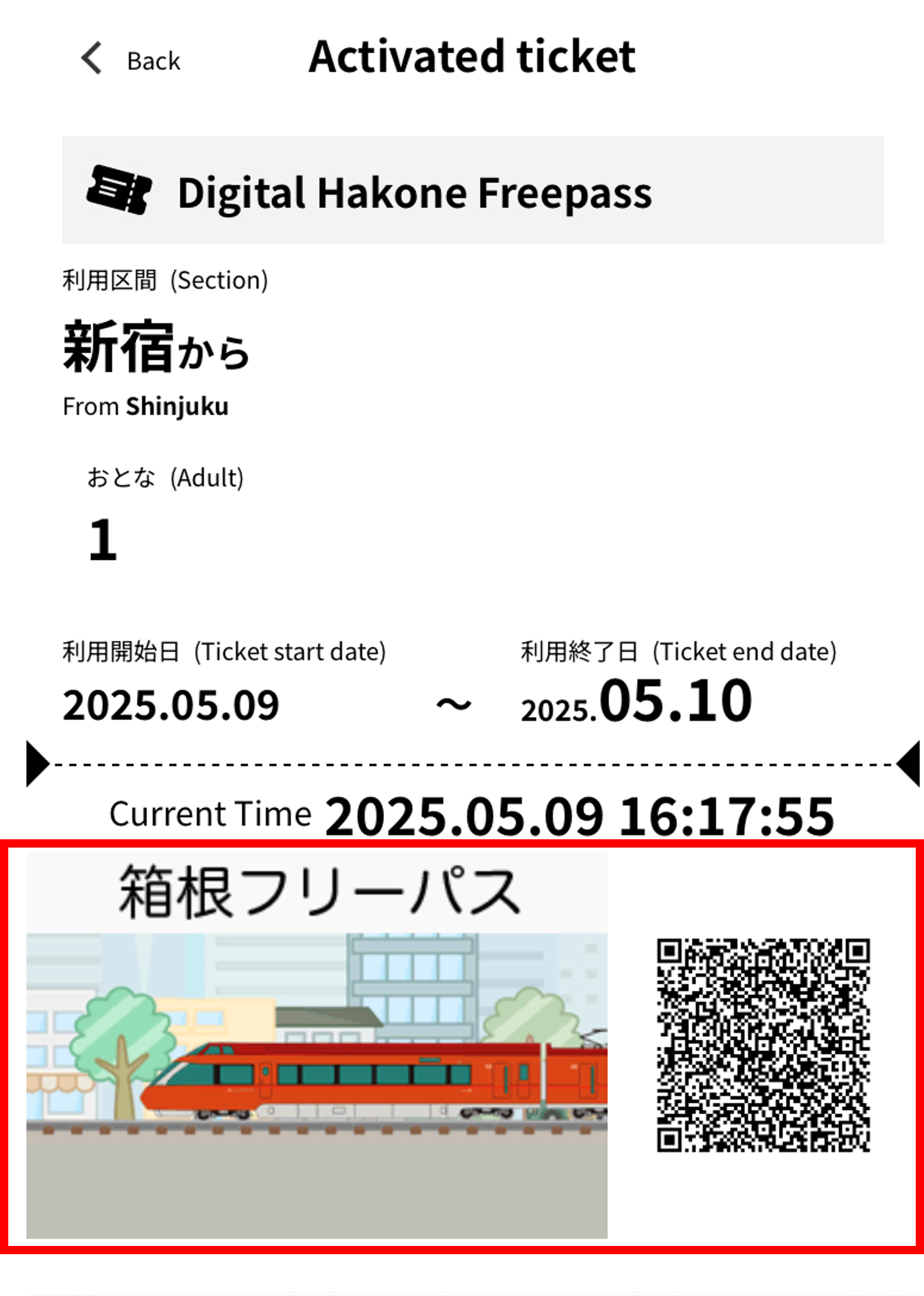
The ticket screen will be displayed. When using the ticket, either show the animation to the facility staff or scan it using a QR authentication terminal.
*Please note that the method may vary depending on the ticket, so be sure to check the instructions for each ticket.
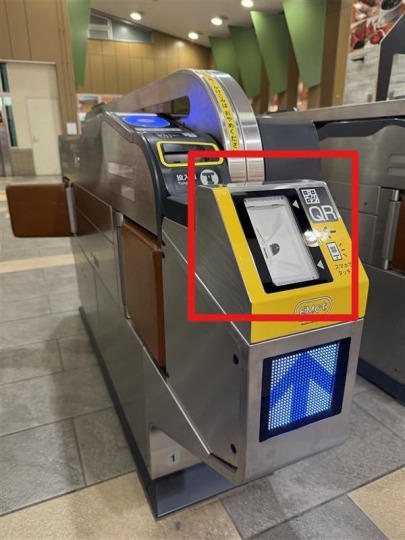
If you are using a ticket gate equipped with a QR authentication terminal, please hold the QR code over the reader area indicated by the red frame in the image on the left.
How to transfer tickets
01
Access "EMot Online Tickets" and select "My Page" from the menu.
From "My Page," select "List of owned tickets" to view your tickets.
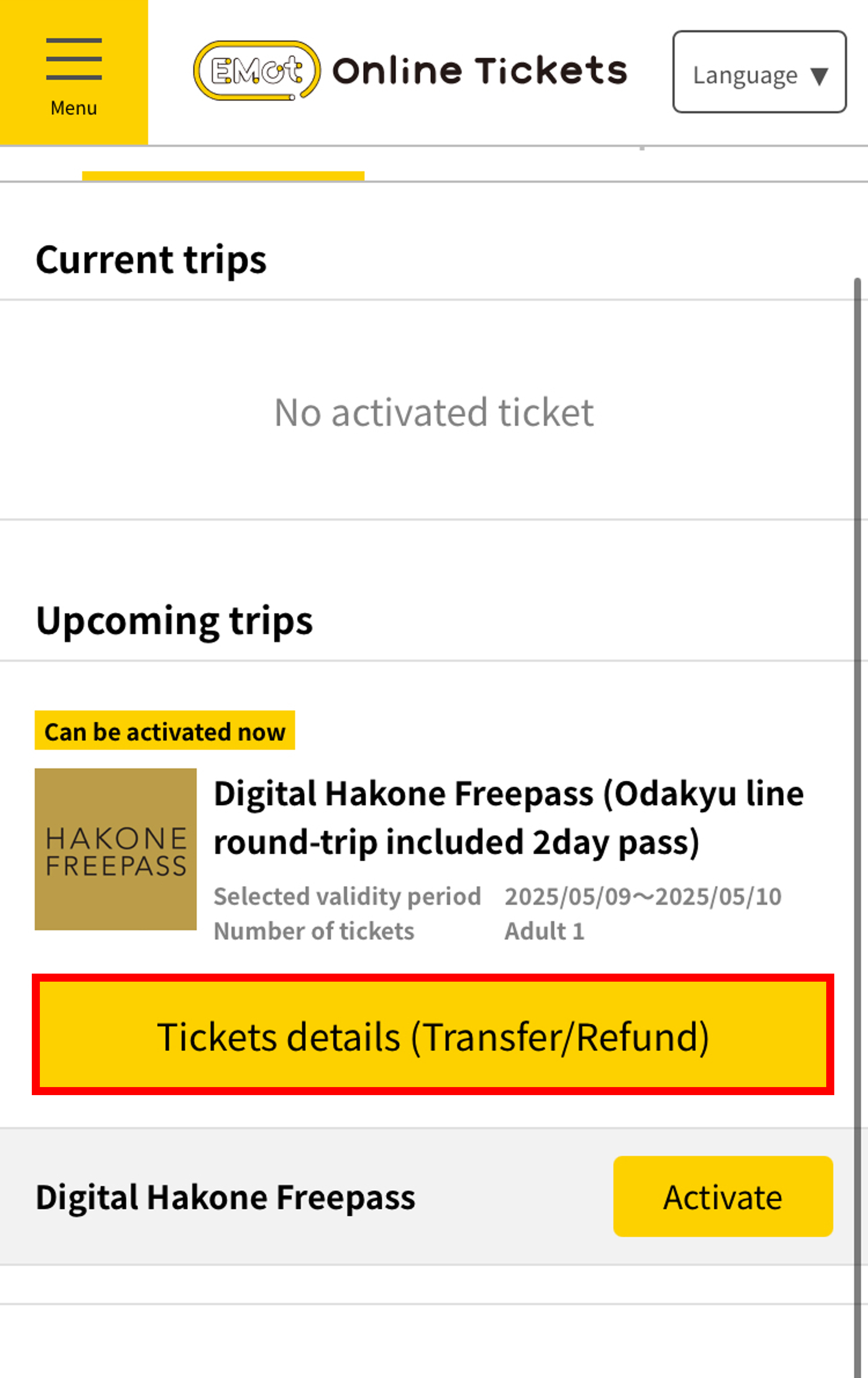
Select “View Details (Transfer/Refund)” for the ticket you want to transfer.
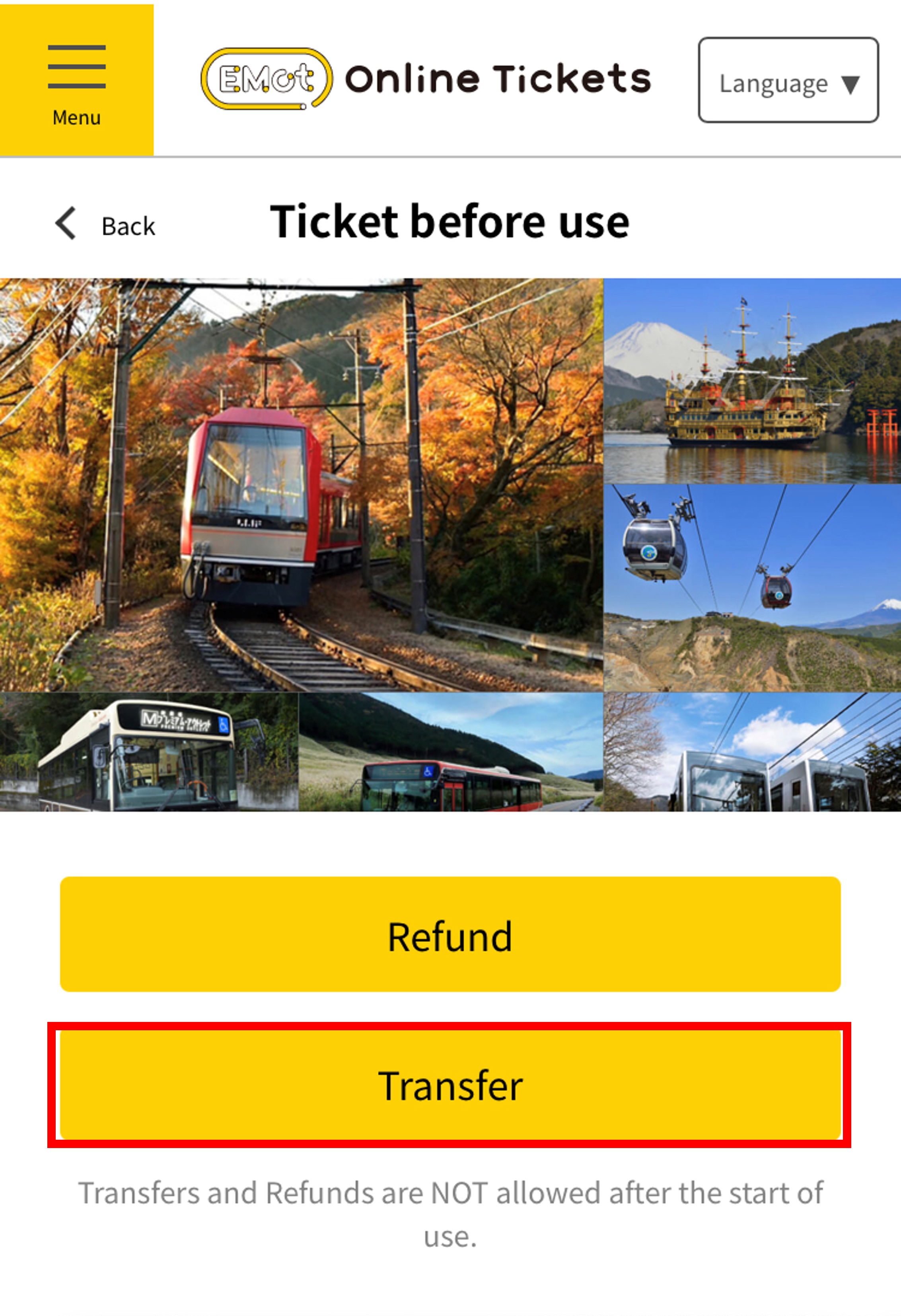
To transfer a ticket, select "Transfer" from the ticket details screen.
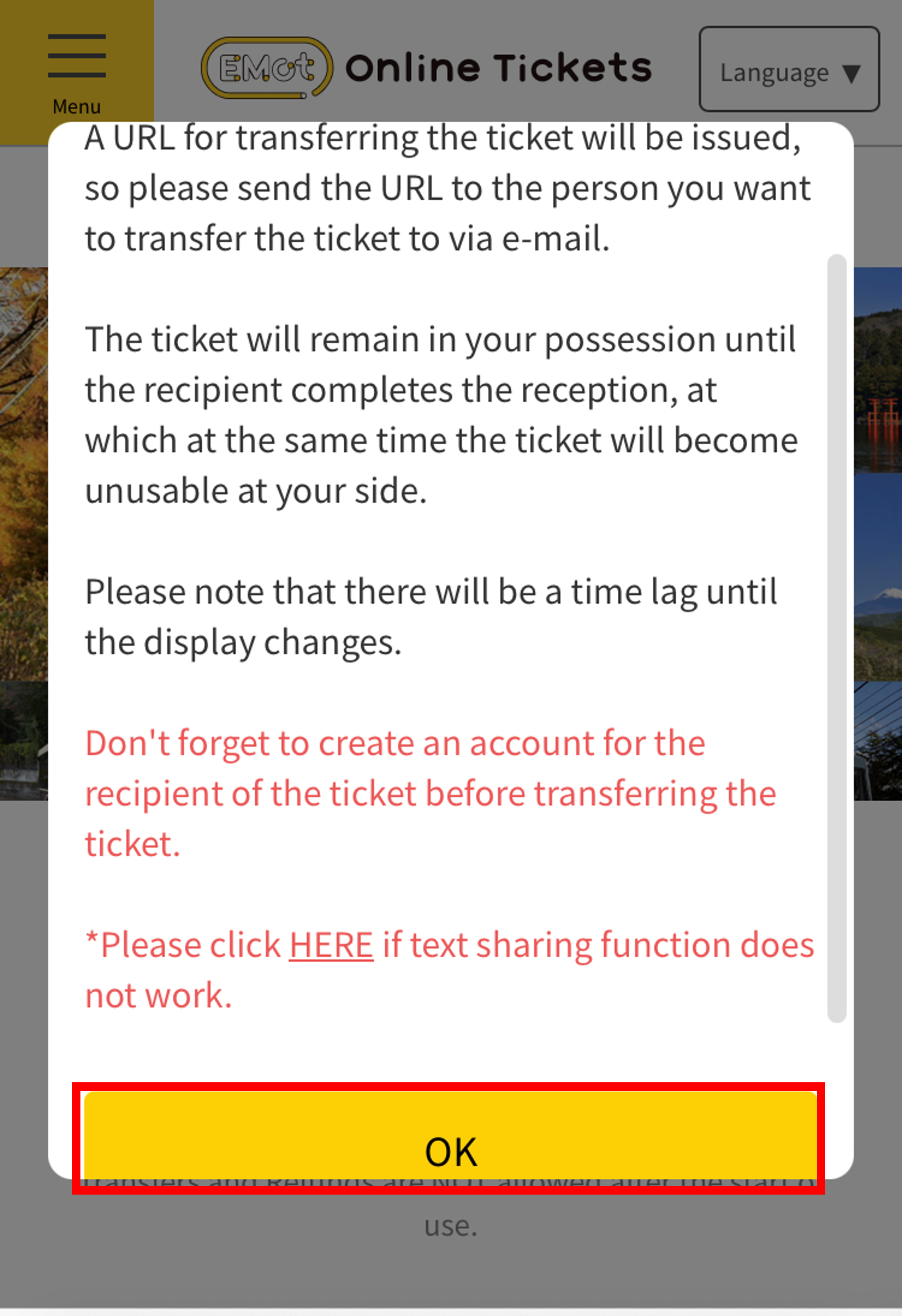
Press the OK button and share the transfer URL using your preferred method.
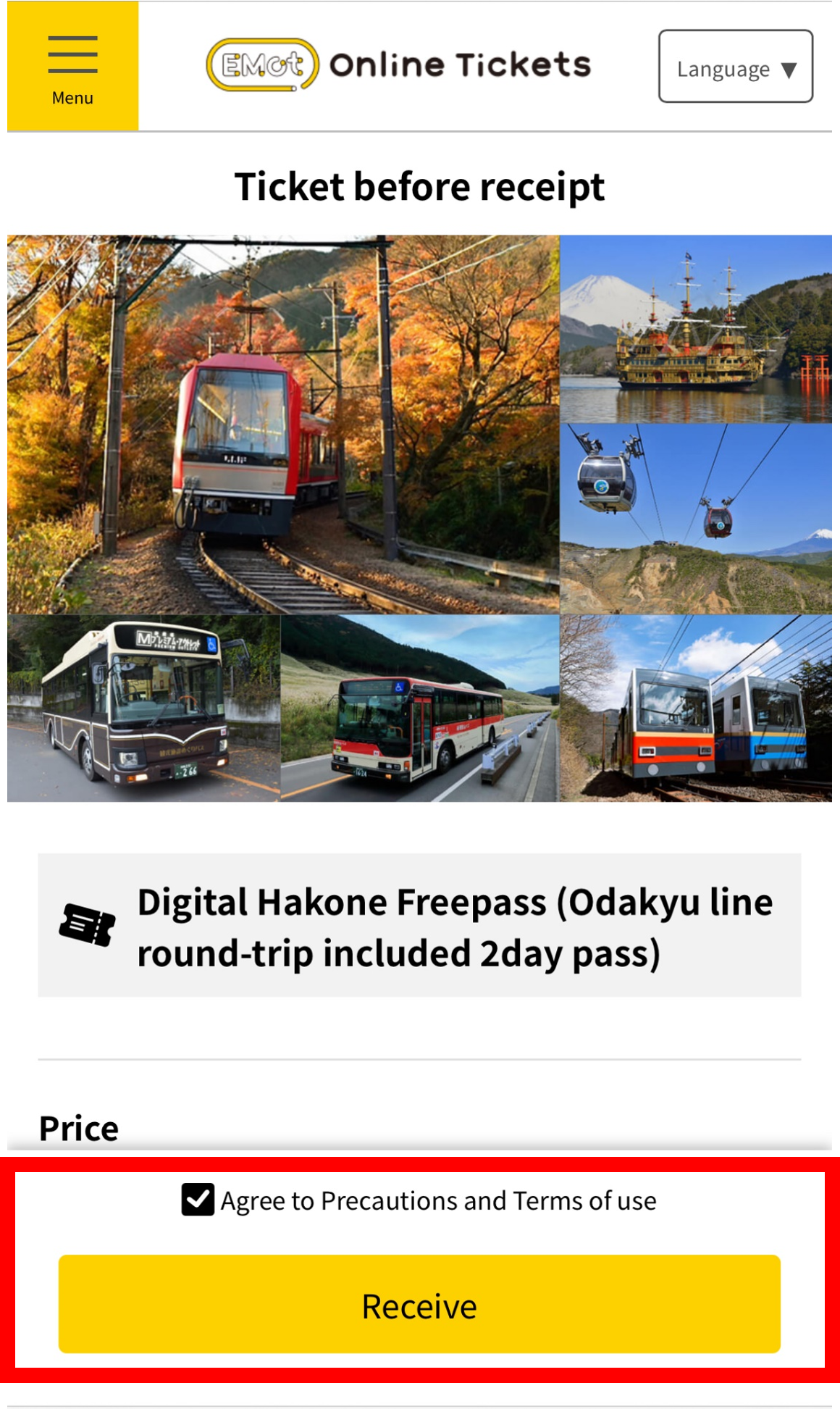
The recipient should access the URL, agree to the terms of use, and select "Receive" to complete the transfer. *An account registration is required beforehand.
Notes
Please note: Some tickets may have different purchase or usage methods, or may not support ticket transfer. Always check the details on each ticket’s purchase page.